
Palette: Difference between revisions
→History: Fix broken link |
Adding Customization |
||
| Line 1: | Line 1: | ||
[[Palette]]s provide the fundamental building blocks (code elements) for [[VI|VIs]] in LabVIEW. | |||
LabVIEW has two types of palettes: | LabVIEW has two types of palettes: | ||
| Line 12: | Line 12: | ||
Elements from the Palettes can be dropped anywhere on the Front Panel or Block Diagram. | Elements from the Palettes can be dropped anywhere on the Front Panel or Block Diagram. | ||
== Customize Palette == | |||
To see display and visibility options of either the Controls or Functions Palettes, first pin the palette by clicking the Pin button in the top-left of the Palette Window. | |||
[[File:PinThePalette.png|frame|center|Pin Button on Palette]] | |||
Once pinned the Customize menu will appear. This Menu shows options for changing views, sorting, and visibility. It also provide another way to the [[Options dialog]], [[Controls/Functions Palettes options]]. | |||
=== Changing Views === | |||
[[File:ChangePaletteViews.png|frame|center|Changing Views]] | |||
The possible views are: | |||
* Category (Standard) | |||
* Category (Icons and Text) | |||
* Icons | |||
* Icons and Text | |||
* Text | |||
* Tree | |||
'''Controls Palette Views''' | |||
<gallery mode="packed" perrow="3"> | |||
File:ControlsCategoryView.png|Category (Standard), Controls View | |||
File:ControlsCategoryIconAndTextView.png|Category (Icons and Text), Controls View | |||
File:ControlsIconsView.png|Icons, Controls View | |||
File:ControlsIconAndTextView.png|Icons and Text, Controls View | |||
File:ControlsTextView.png|Text, Controls View | |||
File: ControlsTreeView.png|Tree, Controls View | |||
</gallery> | |||
'''Functions Palette Views''' | |||
<gallery mode="packed-hover" perrow="3"> | |||
File:FunctionsCategoryView.png|Category (Standard), Functions View | |||
File:FunctionsCategoryIconAndTextView.png|Category (Icons and Text), Functions View | |||
File:FunctionsIconsView.png|Icons, Functions View | |||
File:FunctionsIconAndTextView.png|Icons and Text, Functions View | |||
File:FunctionsTextView.png|Text, Functions View | |||
File:FunctionsTreeView.png|Tree, Functions View | |||
</gallery> | |||
== History == | == History == | ||
| Line 36: | Line 76: | ||
[[Category:LabVIEW fundamentals]] | [[Category:LabVIEW fundamentals]] | ||
[[Category:Palettes]] | |||
Revision as of 21:32, 9 March 2024
Palettes provide the fundamental building blocks (code elements) for VIs in LabVIEW.
LabVIEW has two types of palettes:
- The Controls Palette provides controls and indicators for the Front Panel.
- The Functions Palette provides VIs, functions and constants for the Block Diagram.
Palettes can be accessed in two ways:
- By right-clicking on the Block Diagram or Front Panel.
- By selecting View >> Controls Palette on the Front Panel or View >> Functions Palette on the Block Diagram.
Elements from the Palettes can be dropped anywhere on the Front Panel or Block Diagram.
Customize Palette
To see display and visibility options of either the Controls or Functions Palettes, first pin the palette by clicking the Pin button in the top-left of the Palette Window.

Once pinned the Customize menu will appear. This Menu shows options for changing views, sorting, and visibility. It also provide another way to the Options dialog, Controls/Functions Palettes options.
Changing Views

The possible views are:
- Category (Standard)
- Category (Icons and Text)
- Icons
- Icons and Text
- Text
- Tree
Controls Palette Views
-
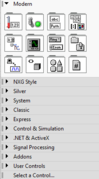 Category (Standard), Controls View
 -
 Category (Icons and Text), Controls View
 -
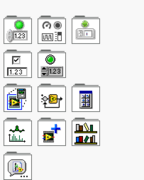 Icons, Controls View
 -
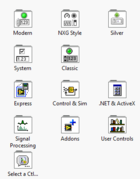 Icons and Text, Controls View
 -
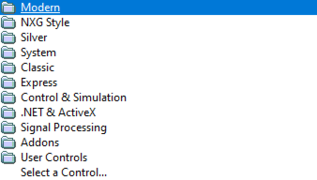 Text, Controls View
 -
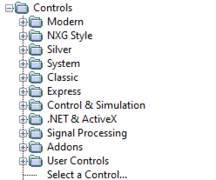 Tree, Controls View


Functions Palette Views
-
 Category (Standard), Functions View
 -
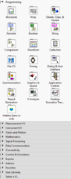 Category (Icons and Text), Functions View
 -
 Icons, Functions View
 -
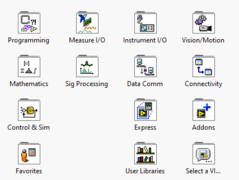 Icons and Text, Functions View
 -
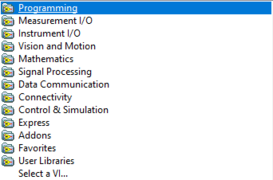 Text, Functions View
 -
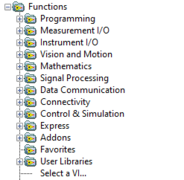 Tree, Functions View


History
| Version | Change(s) |
|---|---|

|
Subpalette style changed from tiled icons to folder-like icons. |

|
Palette organization according to categories (controls and functions). |