
Getting Started Window: Difference between revisions
mNo edit summary |
→History: Add 2022 |
||
| (8 intermediate revisions by 2 users not shown) | |||
| Line 1: | Line 1: | ||
{{ | {{TOCright}}The '''Getting Started Window''' provides help when getting started. It provided links to help and online resources as well as recently used [[Project Template]]s and files. | ||
== Main Components == | == Main Components == | ||
[[File:Getting Started Window-LabVIEW 2020-Parts.png|center|LabVIEW 2020 Getting Started Window Components]] | [[File:Getting Started Window-LabVIEW 2020-Parts.png|center|LabVIEW 2020 Getting Started Window Components]] | ||
# List of Recently used Project Templates. Clicking the '''Create Project''' button opens the [[Project Template]] dialog box. | # List of Recently used Project Templates. Clicking the '''Create Project''' button opens the [[Project Template]] dialog box. This button moves to the top of the list when there are items in the list. Items can be pinned to the list to stay at the top of the list. | ||
# List of Recently opened Projects and VIs. Clicking '''Open Existing''' but opens a file dialog to open any of the [[LabVIEW File Extensions]]. | # List of Recently opened Projects and VIs. Clicking '''Open Existing''' but opens a file dialog to open any of the [[LabVIEW File Extensions]]. This button moves to the top of the list when there are items in the list. Items can be pinned to the list to stay at the top of the list. Also, when there are items in the list, a drop-down filter appears. The Default is "All Files" but the options are {0 = All, 1 = Recent Projects, 2 = Recent VIs, 3 = Other Recent Files}. | ||
# Search for terms in the local help file or on NI.com with internet connection. | # Search for terms in the local help file or on NI.com with an internet connection. | ||
# Tips and links to other resources | # Tips and links to other resources | ||
# Links to NI Tools | # Links to NI Tools Network and the NI Forums. | ||
# Menu bar | # Menu bar | ||
| Line 13: | Line 14: | ||
<gallery mode=slideshow> | <gallery mode=slideshow> | ||
File:Getting Started Window-LabVIEW 2023 Q1.png|link=LabVIEW 2023 Q1|LabVIEW 2023 Q1 | |||
File:Getting Started Window-LabVIEW 2022 Q3.png|link=LabVIEW 2022|LabVIEW 2022 Q3 | |||
File:Getting Started Window-LabVIEW 2021 SP1.png|link=LabVIEW 2021|LabVIEW 2021 SP1 | |||
File:Getting Started Window-LabVIEW 2020 SP1.png|link=LabVIEW 2020|LabVIEW 2020 SP1 | |||
File:Getting Started Window-LabVIEW 2020.png|link=LabVIEW 2020|LabVIEW 2020 | File:Getting Started Window-LabVIEW 2020.png|link=LabVIEW 2020|LabVIEW 2020 | ||
File:Getting Started Window-LabVIEW 2019.png|link=LabVIEW 2019|LabVIEW 2019 | File:Getting Started Window-LabVIEW 2019.png|link=LabVIEW 2019|LabVIEW 2019 | ||
| Line 35: | Line 40: | ||
== History == | == History == | ||
{{ | {{History|2022| | ||
{| | * Removed search box. | ||
}} | |||
{{History|2020| | |||
| | * New window design. | ||
|[[ | * Added Tips section. | ||
* Removed live RSS feed. | |||
}} | |||
{{History|2018| | |||
* New window design. | |||
}} | |||
{{History|2017| | |||
* New version banner. | |||
}} | |||
{{History|2012| | |||
* New window design. | |||
* Added [[project template]]s section. | |||
* Added live RSS feed. | |||
* Changed the dialog to be resizable. | |||
}} | |||
{{History|2010| | |||
* Added a search box. | |||
}} | |||
{{History|2009| | |||
* New window design. | |||
}} | |||
{{History|8| | |||
* New window design. | |||
}} | |||
== See Also == | == See Also == | ||
* [[LabVIEW configuration file/Getting Started Window|LabVIEW Configuration File Keys for the Getting Started Window]] | |||
* [[Project Template]]s | |||
* [[LabVIEW Project]]s | |||
* [[VI]]s | |||
== External Links == | == External Links == | ||
* [http://www.eyesonvis.com/main/ "Eyes on VIs"] - blog of Christina Rogers, creator of the [[LabVIEW 2012]] '''Getting Started Window'''. | |||
[[Category:Getting Started Window]] | [[Category:Getting Started Window]] | ||
Latest revision as of 17:28, 7 May 2023
The Getting Started Window provides help when getting started. It provided links to help and online resources as well as recently used Project Templates and files.
Main Components

- List of Recently used Project Templates. Clicking the Create Project button opens the Project Template dialog box. This button moves to the top of the list when there are items in the list. Items can be pinned to the list to stay at the top of the list.
- List of Recently opened Projects and VIs. Clicking Open Existing but opens a file dialog to open any of the LabVIEW File Extensions. This button moves to the top of the list when there are items in the list. Items can be pinned to the list to stay at the top of the list. Also, when there are items in the list, a drop-down filter appears. The Default is "All Files" but the options are {0 = All, 1 = Recent Projects, 2 = Recent VIs, 3 = Other Recent Files}.
- Search for terms in the local help file or on NI.com with an internet connection.
- Tips and links to other resources
- Links to NI Tools Network and the NI Forums.
- Menu bar
Previous Versions
-
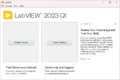 LabVIEW 2023 Q1
 -
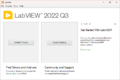 LabVIEW 2022 Q3
 -
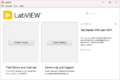 LabVIEW 2021 SP1
 -
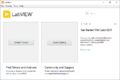 LabVIEW 2020 SP1
 -
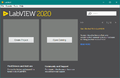 LabVIEW 2020
 -
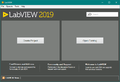 LabVIEW 2019
 -
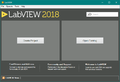 LabVIEW 2018
 -
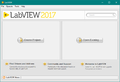 LabVIEW 2017
 -
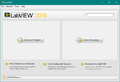 LabVIEW 2016
 -
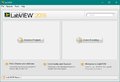 LabVIEW 2015
 -
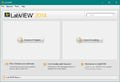 LabVIEW 2014
 -
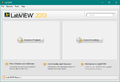 LabVIEW 2013
 -
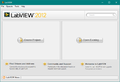 LabVIEW 2012
 -
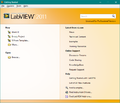 LabVIEW 2011
 -
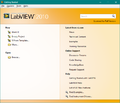 LabVIEW 2010
 -
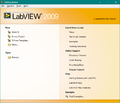 LabVIEW 2009
 -
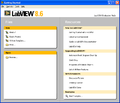 LabVIEW 8.6
 -
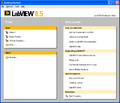 LabVIEW 8.5
 -
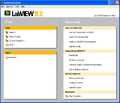 LabVIEW 8.2
 -
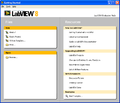 LabVIEW 8.0
 -
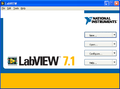 LabVIEW 7 Express
 -
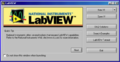 LabVIEW 6i
 -
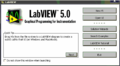 LabVIEW 5.0
History
- LabVIEW 2022:
- Removed search box.
- LabVIEW 2020:
- New window design.
- Added Tips section.
- Removed live RSS feed.
- LabVIEW 2018:
- New window design.
- LabVIEW 2017:
- New version banner.
- LabVIEW 2012:
- New window design.
- Added project templates section.
- Added live RSS feed.
- Changed the dialog to be resizable.
- LabVIEW 2010:
- Added a search box.
- LabVIEW 2009:
- New window design.
- LabVIEW 8:
- New window design.
See Also
- LabVIEW Configuration File Keys for the Getting Started Window
- Project Templates
- LabVIEW Projects
- VIs
External Links
- "Eyes on VIs" - blog of Christina Rogers, creator of the LabVIEW 2012 Getting Started Window.