
Context Help: Difference between revisions
Add new page (stub) |
Add main content |
||
| (One intermediate revision by the same user not shown) | |||
| Line 1: | Line 1: | ||
[[File:Context Help.png|thumb|Context Help]] | |||
'''Context Help''' is a floating dialog that displays additional information and description about elements in LabVIEW. | |||
==Usage== | |||
Context Help can be opened via the ''Help'' menu, selecting ''Show Context Help'' or by using the keyboard shortcut ''Ctrl''+''H''. Hovering over any element in LabVIEW displays the corresponding help text. For [[VI]]s and other nodes on the block diagram, the configured descriptions and labels are displayed, including data types and terminal labels. If additional help context is provided, the ''Detailed Help'' button becomes available and links to an external site or help document. | |||
===Optional Terminals and Full Path=== | |||
By default, Context Help does not show labels for optional terminals. This can dynamically be changed by toggling the ''Optional Terminals and Full Path'' button on the bottom left corner. | |||
<gallery mode="packed" heights=200> | |||
Context Help Without Optional Terminals.png|Optional Terminals and Full Path hidden | |||
Context Help With Optional Terminals.png|Optional Terminals and Full Path shown | |||
</gallery> | |||
===Discuss with Nigel=== | |||
Discuss with Nigel is a new feature in [[LabVIEW 2025 Q3]] that adds a shortcut to discuss the item being shown with [[Nigel AI Advisor]]. When selected, it opens Nigel with the [[Block Diagram]] of the VI to provide further information. | |||
<gallery mode="packed" heights=200> | |||
Context Help Discuss with Nigel.png|Discuss with Nigel | |||
Context Help Discuss with Nigel Response.png|Response for Discuss with Nigel | |||
</gallery> | |||
== Tips and tricks == | == Tips and tricks == | ||
| Line 6: | Line 25: | ||
** Press '''Ctrl+Shift+L''' again, to unlock the Context Help window. | ** Press '''Ctrl+Shift+L''' again, to unlock the Context Help window. | ||
[[Category: | ==See also== | ||
* [[Nigel AI Advisor]] | |||
==History== | |||
{{history|product=LabVIEW|2025 Q3| | |||
* Added ''Discuss with Nigel'' links | |||
* [[VI]]s: Added [[Reentrancy]], [[Execution Priority]], [[Preferred Execution System]] | |||
* [[Call Library Function Node]]s: Added Function prototype, Library name or path | |||
}} | |||
[[Category:Development Environment]] | |||
Latest revision as of 05:45, 18 August 2025

Context Help is a floating dialog that displays additional information and description about elements in LabVIEW.
Usage
Context Help can be opened via the Help menu, selecting Show Context Help or by using the keyboard shortcut Ctrl+H. Hovering over any element in LabVIEW displays the corresponding help text. For VIs and other nodes on the block diagram, the configured descriptions and labels are displayed, including data types and terminal labels. If additional help context is provided, the Detailed Help button becomes available and links to an external site or help document.
Optional Terminals and Full Path
By default, Context Help does not show labels for optional terminals. This can dynamically be changed by toggling the Optional Terminals and Full Path button on the bottom left corner.
-
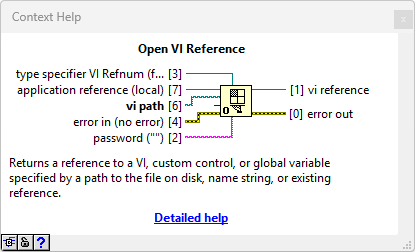 Optional Terminals and Full Path hidden
 -
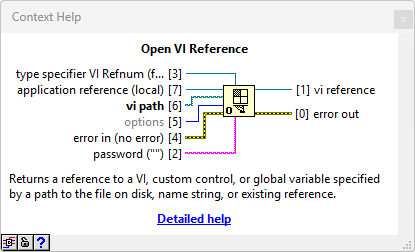 Optional Terminals and Full Path shown


Discuss with Nigel
Discuss with Nigel is a new feature in LabVIEW 2025 Q3 that adds a shortcut to discuss the item being shown with Nigel AI Advisor. When selected, it opens Nigel with the Block Diagram of the VI to provide further information.
-
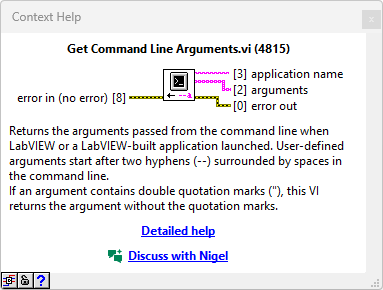 Discuss with Nigel
 -
 Response for Discuss with Nigel


Tips and tricks
- Press the Show Optional Terminals and Full Path button to display optional terminals and the full path to a VI.
- Press Ctrl+Shift+L to lock the Context Help window. This will prevent the Context Help window from changing when hovering over objects.
- Press Ctrl+Shift+L again, to unlock the Context Help window.
See also
History
- LabVIEW 2025 Q3:
- Added Discuss with Nigel links
- VIs: Added Reentrancy, Execution Priority, Preferred Execution System
- Call Library Function Nodes: Added Function prototype, Library name or path