
Access scope: Difference between revisions
Add new page |
(No difference)
|
Revision as of 15:26, 1 April 2020
Access scope defines the accessibility of items in libraries and classes. Every item in a library or class can be set to either public, protected (classes only), community or private scope. Virtual folders automatically apply their access scope to all contained items.
-
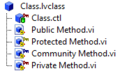 Different access scopes in classes.
 -
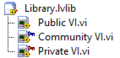 Different access scopes in libraries.


Public scope
Public items are accessible by anyone. This is the default access scope in LabVIEW.
Protected scope
Items in protected scope are shown with a yellow key ( ) on the file icon. Protected scope is only available for classes. Methods in protected scope are accessible by the owning class and its descendants.
Community scope
Items in community scope are shown with a blue key ( ) on the file icon. They are accessible by the owning library, its descendants (for classes) and direct friends of the owning library.
Private scope
Items in private scope are shown with a red key ( ) on the file icon and only accessible by the owning library.
See also
External links
- Setting the Access Scope of Member VIs
- Configuring Access Options in Project Libraries
- Get Library Access Scope Method
 |
This article is a stub. You can help LabVIEW Wiki by expanding it. Please improve this article if you can. |